Short answer: to turn a song with no karaoke version into one, you need four things: a backing track without vocals, a key that suits your voice, the lyrics in front of you and a way to hear yourself. You split the song into stems with AI and mute the vocal stem, shift the key up or down in semitone steps, open the lyrics and sing over it on headphones. No need to hunt for a ready-made karaoke video.
This guide walks through each step, explains honestly what's possible if you want the backing track as a file, and where separation still struggles.
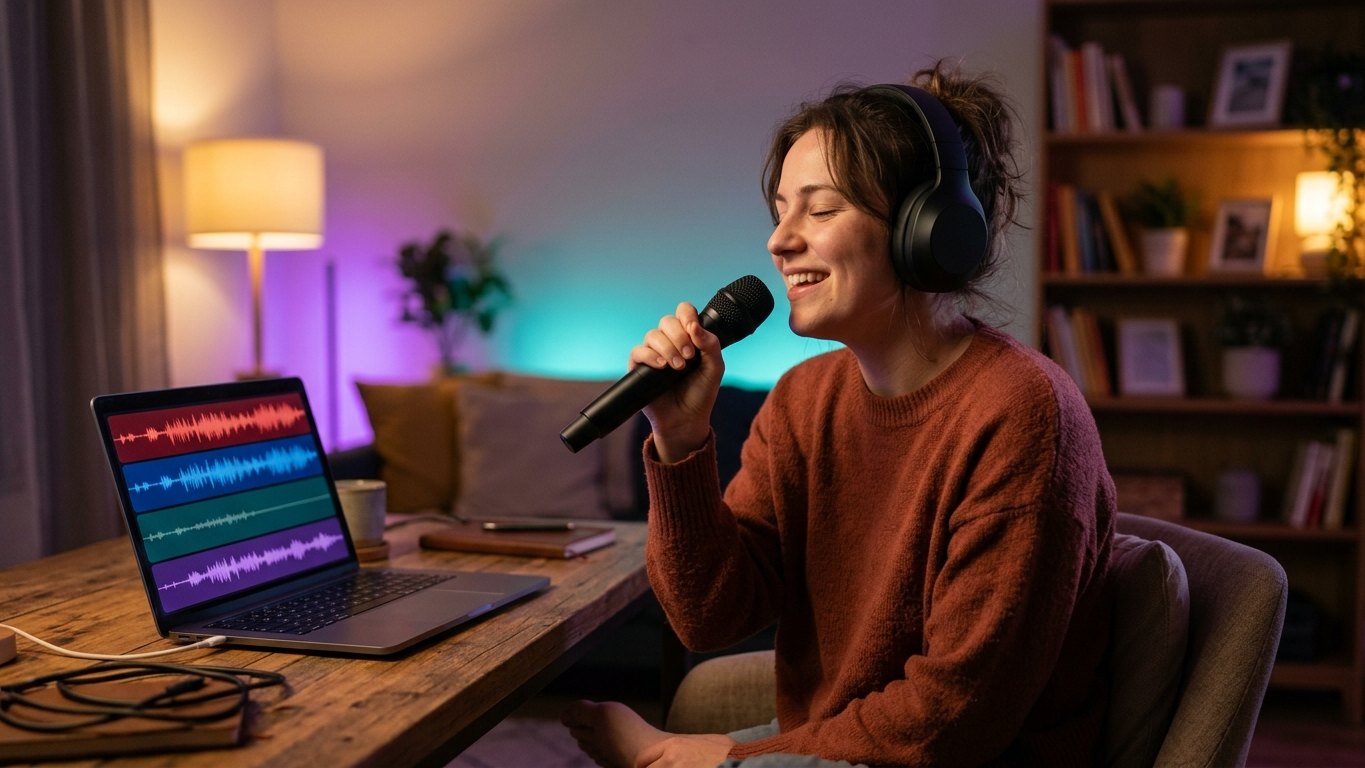
Ready-made karaoke vs making your own
When most people think of karaoke, they picture a video: the backing track plays and the lyrics scroll across the screen. Most popular songs have one. The problem starts when the song you want doesn't: a new release, a lesser-known track, a cover, or a recording by your own band.
There's a second problem. Ready-made karaoke tracks usually come in the original key. If the chorus sits above your range, you're stuck.
Making your own karaoke version solves both. You start from the song itself, remove the vocals and set the key to fit your voice. The result is a karaoke track built for you, for any song.
What do you need for karaoke?
A good home karaoke setup has four parts:
- A backing track without vocals. The singer's voice goes, the music stays.
- Your key. If the original key doesn't suit your voice, the whole track needs to move by a few semitones, without changing speed.
- Lyrics. If you don't know them by heart, they should be in front of you.
- Hearing yourself. Headphones that let you hear the backing track and your own voice, and ideally a way to record and play it back.
This used to take four different tools. The workflow below does it all in one window.
Step by step: make a karaoke version of a song
The steps below are for VoxoMix, but the logic is the same whatever tool you use.
1. Open the song and split it into stems
Drag your audio file into the window. MP3, WAV, FLAC, AAC and M4A open directly. The app processes the song on your device and splits it into channels: Vocals, Drums, Bass, String Instrument, Keyboard Instrument and Other Instrument. The number of channels depends on your plan: 4 on the free plan, 6 on Basic, 6+ on Student and Producer.
The better the source, the cleaner the split. Use the best copy you have rather than a low-quality file that's been compressed over and over.
2. Mute the vocals, but not all the way
Press M (mute) on the vocal channel. The song now plays without vocals: your karaoke backing track is ready.
A small tip: if you're still learning the song, don't mute the vocal completely. Pull the vocal channel's level down low instead. The original singer stays in the background like a whisper, so you don't miss entrances or the melody. Lower it a bit more as you learn, then mute it for good. We cover how vocal separation works and how to get a clean result in our guide to removing vocals from a song.
3. Set the key to your voice
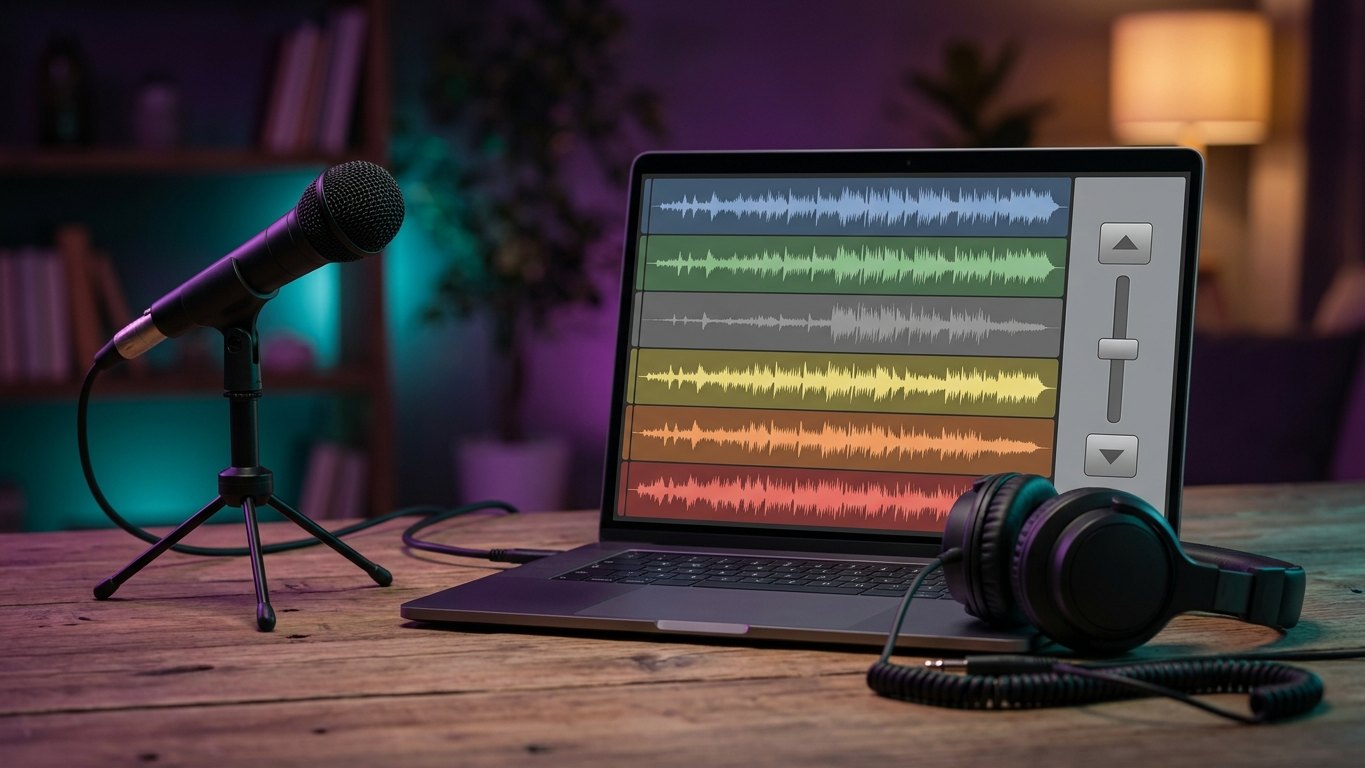
The most common karaoke problem: great song, but the chorus sits above your voice. The fix is to shift the key.
- Play the highest part of the chorus and sing along.
- If you're straining, drop the key by one semitone and sing the same part again.
- Keep going down one semitone at a time until it feels comfortable.
- Then check the verse: go down too far and the low notes disappear.
Changing the key doesn't change the tempo: the song plays at the same speed, just lower or higher. And because you've muted the vocals, the channel most sensitive to pitch shifting (the human voice) is already out of the mix, so a key shift on a karaoke backing track often sounds more natural than on the full song. We explain how to find the right key in our guide to changing the key of a song.
Key change is available on the Basic, Student and Producer plans.
4. Open the lyrics
If you don't know the words, open the Lyrics & Chords window. The app transcribes the lyrics from the audio automatically and shows them there. Lyrics transcription is also available from the Basic plan up.
Automatic transcription is fast, but not flawless. Words can slip in fast passages, slang or lines in another language. Read through the lyrics once on your first pass and check anything you're unsure of by ear.
5. Slow down the hard part
If there's a fast verse or a section that leaves no room to breathe, slow the song down. Changing the speed doesn't change the pitch: sing it slowly until the words sit, then bring the tempo back up step by step. This is available on the free plan too. See our guide on how to slow down a song without changing the pitch.
6. Sing over it and record yourself
Put your headphones on, play the backing track and sing. On the Student and Producer plans the Record channel is available: while recording you hear both the backing track and your own voice through your headphones. When you're done, you play the take back inside the song, with the backing track. Don't like it? Delete it and go again.
Hearing your own voice feels strange at first, but it's where you improve fastest. You only notice where you drift off pitch or run out of breath when you listen back.
Can I get the backing track as a file?
Let's answer this clearly, because most people looking for karaoke are thinking "download an MP3 without vocals".
In VoxoMix the backing track plays inside the app: you mute the vocals, set the key and sing over it. Today the app does not export the vocal-free mix as a single file. Export works per channel:
- One channel: you can download each channel separately. MP3 export starts on the Basic plan, lossless WAV on Producer.
- All channels: on the Producer plan you can batch-export every channel at once.
- Your own take: you can download what you recorded on the Record channel as a file too.
If you take the non-vocal channels as separate files and stack them in any audio editor, you can build your own backing track file. But for singing at home, practising and recording yourself, you don't need a file at all: everything happens in one window.
What decides karaoke quality? The honest limits

AI vocal separation is very good now, but it doesn't give the same result on every song:
- Backing vocals and choirs. The app doesn't give you a separate backing-vocal channel; backing vocals usually go with the Vocals channel. Keep that in mind if you want the choir in the chorus.
- Effect tails. If the vocal has heavy reverb or delay, a faint "ghost" can remain even when the voice itself is gone.
- Live recordings. Crowd noise and room reverb make separation harder.
- Low-quality sources. A file damaged by compression gives a blurrier split.
- Length limits. How long a song you can process depends on your plan: 4 minutes on the free plan, 5 on Basic, 7 on Student, unlimited on Producer. Check this first if you're turning a long track into karaoke.
Karaoke doesn't need a perfect split. With the music up and your voice in front, small artefacts are barely audible.
What's in each plan?
| Feature | Free | Basic | Student | Producer |
|---|---|---|---|---|
| Songs per month | 2 | 10 | 50 | Unlimited |
| Max. length | 4 min | 5 min | 7 min | Unlimited |
| Stem separation (mute vocals) | 4 | 6 | 6+ | 6+ |
| Speed change (BPM) + metronome | ✔ | ✔ | ✔ | ✔ |
| Key change | — | ✔ | ✔ | ✔ |
| Lyrics transcription | — | ✔ | ✔ | ✔ |
| Record channel | — | — | ✔ | ✔ |
| Export | — | MP3 | MP3 + PDF | MP3 + lossless WAV + MIDI + PDF, batch export |
Prices: Basic $2.99/month · Student $8.99/month · Producer $13.99/month, with a discount on annual billing. You can try Producer free for 14 days. The free plan doesn't expire, and it's enough to mute the vocals and play the backing track inside the app.
VoxoMix runs on macOS (M1–M5) and Windows 10/11. Everything is processed on your own computer; your song is never uploaded to a server.
Frequently asked questions
How do I make a karaoke version of a song that doesn't have one?
Split the song into stems with AI and mute the vocal channel. If needed, shift the key in semitone steps to suit your voice, open the lyrics and sing over it on headphones. You don't need a ready-made karaoke version.
Can I download the backing track without vocals as a single MP3?
VoxoMix doesn't currently export the vocal-free mix as one file. You can download channels separately (MP3 from Basic, lossless WAV from Producer), and batch-export all channels on Producer. For singing at home, playing the backing track inside the app is enough.
Is the free plan enough for karaoke?
For muting the vocals and playing the backing track inside the app, yes: the free plan processes 2 songs a month up to 4 minutes each, split into 4 channels. Key change and lyrics start on Basic, the Record channel on Student.
If I lower the key, does the song slow down?
No. Key change separates pitch from tempo; the song plays at the same speed, only lower or higher. If you also want to change the speed, there's a separate speed control for that.
Are backing vocals removed too?
Usually backing vocals end up in the Vocals channel with the lead vocal, so muting that channel lowers them too. There's no separate backing-vocal channel. With very reverb-heavy vocals a faint trace can remain.
Can I record my own voice over the song?
Yes, with the Record channel on the Student and Producer plans. While recording you hear both the backing track and yourself on headphones, then play it back with the song and download your take as a file.
Conclusion
A song without a karaoke version is no longer a dead end. Remember three things: mute the vocal, but not all the way while you're learning, shift the key to your voice in the smallest step that works, and sing on headphones and listen back to yourself. You don't need the backing track as a file; for singing at home, everything is in one window.
Karaoke is one of the most fun ways to practise with a song. For the full practice workflow, our complete guide to practising any song is a good next step.
Start with that one song you've never found a karaoke version of.
Download VoxoMix for free and turn tonight's song into your own karaoke track.
Download Free